 PlayEarn
How to Install APK Files on Android Safely: Step-by-Step Guide
How to Install APK Files on Android Safely: Step-by-Step Guide
Knowing how to install APK files on Android safely means checking more than the Install button. Before opening the file, confirm who published it, whether it supports your phone, and whether the permissions fit the app’s purpose.
The short answer is simple: download the APK from the official developer or a source you have carefully checked. Confirm the version and Android requirements, open the file, enable Allow from this source for the browser or file manager you are using, and tap Install. Once it is installed, switch that permission off, run Google Play Protect, and review the app’s permissions.
This guide covers the entire process, including common warnings and installation errors. You can explore our Android game reviews and APK guides before deciding what belongs on your phone. Popular starting points include our RS Games Pakistan guide, best 777 games comparison, and complete 999 Games family guide.
Before You Install: Check Whether the APK Is Trustworthy
An APK is the package Android uses to install an application. When you download an app from Google Play, the store handles the package, compatibility checks, and installation behind the scenes. With manual installation—often called sideloading—you find and open the file yourself.
That extra control can be useful, especially when an app is unavailable in your region or an older phone needs a previous version. It also means that several checks normally handled by the store become your responsibility.
Confirm the Source and Developer
Start with the developer’s official website whenever it provides a direct APK download. Look closely at the domain name. Fake or copied websites may add an extra word, change one letter, or use a different domain extension to appear legitimate.
Ask these questions before downloading:
- Is the developer or publisher clearly named?
- Does the website actually belong to that developer?
- Is there one clear download button instead of several misleading ones?
- Does the page show the app version and Android requirements?
- Can you see a release history or update date?
- Does the website explain where the file came from?
- Is there a way to report a suspicious or broken download?
A padlock in the address bar only means the connection uses HTTPS. It does not confirm that the website, developer, or APK is genuine.
Be more careful when a file arrives through a WhatsApp forward, Telegram channel, Facebook post, shortened link, or unfamiliar “support agent.” Instead of opening the supplied link, search for the developer independently and compare the details.
Similar app names do not always mean the platforms share the same developer. Our RS Games family investigation and M666 vs M999 comparison show how branding can create confusion.
Check the File and Phone Requirements
Review the available file information before opening the installer:
- App and developer name
- Package name, when available
- Version name and version code
- Release or update date
- Download size
- Minimum Android version
- Supported CPU architecture, if stated
- Package format, such as APK, APKS, XAPK, or APKM
- Permissions the app is likely to need
“Latest version” does not always mean “best version for your phone.” A newer build may require a recent Android release, more storage, or a different processor architecture. This matters on older or entry-level phones, which may install a large game but struggle to run it smoothly afterward.
Before trusting a link shared through social media, compare it with the source and app details discussed in our WinPKR777 installation checklist.
Permissions should also fit the app’s job. A messaging app may reasonably request camera or microphone access when you use voice and video features. An offline calculator has little reason to demand contacts, SMS, accessibility control, or device-administrator access.
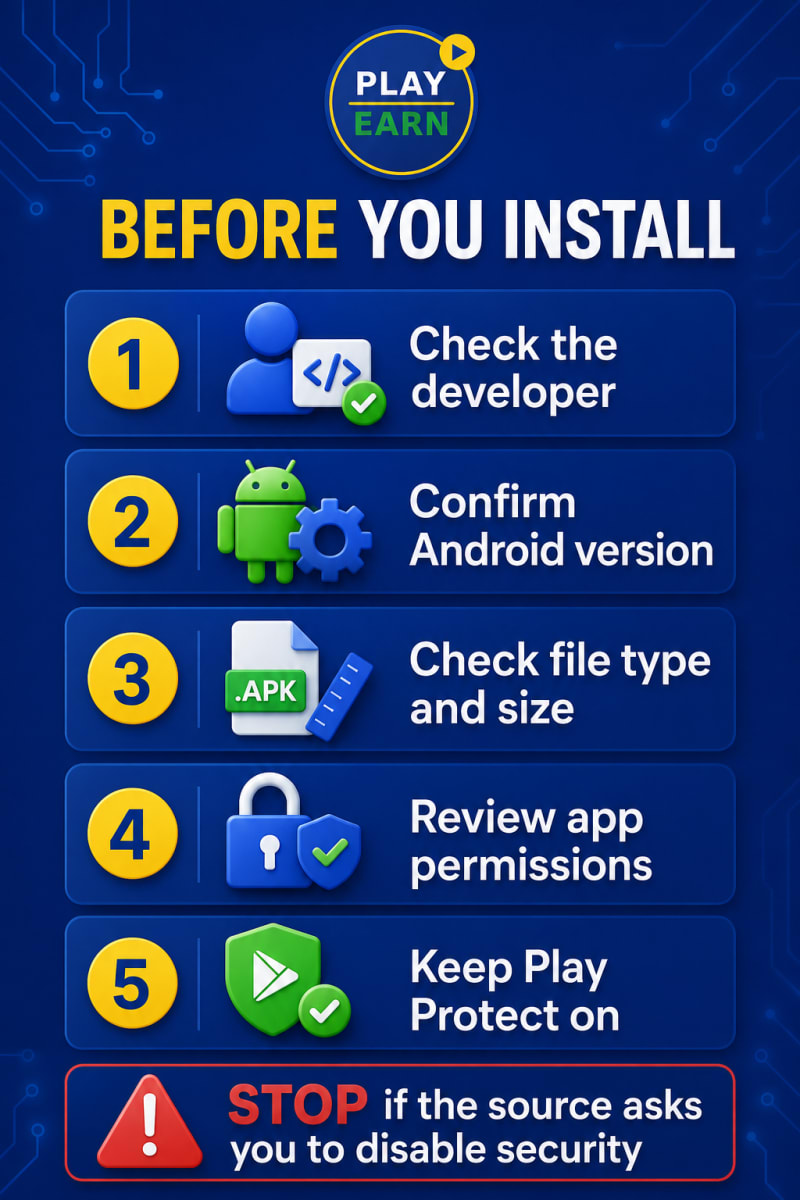
Use this pre-installation checklist:
I can identify the developer.
The domain name is correct.
The version supports my Android release.
The file size looks consistent with the download information.
I know whether the file is APK, XAPK, APKM, or APKS.
Google Play Protect remains enabled.
The requested permissions match the app’s function.
The website does not ask me to disable every security feature.
If you are choosing between two similar games, compare their Android requirements, storage needs, publisher information, and available app details—not just screenshots or bonus claims. APK size alone does not tell you how well an app will run. Our GN55 budget Android performance test examines loading, storage and device behaviour in practice. For a real setup example, see our R789 beginner installation and deposit guide.
Warning: Phrases such as “premium unlocked,” “unlimited money,” “mod menu,” or “no verification” can indicate that someone has changed the original application. Modified files need more scrutiny than an unchanged developer release.
Where to Find “Install Unknown Apps” on Android
Android usually grants installation permission to one source app at a time. It does not simply open the phone to installations from everywhere.
If you downloaded the APK through Chrome, Android may ask you to permit Chrome. If you open it through My Files or Files by Google, the file manager may need permission instead.
Turning on Allow from this source only lets that app request an installation. It does not scan the APK, approve its publisher, or confirm that it is safe.
You can compare the version, features, Android requirements and known risks on the relevant PlayEarn game review page before installing.
Give Permission to the Correct Source App
| Where you open the APK | App that may need permission |
|---|---|
| Chrome download notification | Chrome |
| Downloads folder in Files by Google | Files by Google |
| Samsung Downloads folder | My Files |
| File transferred from a computer | The file manager used to open it |
| Another browser | That specific browser |
The location of this setting varies by Android version and phone manufacturer. You will usually find it in one of these areas:
| Phone family | Likely settings area |
|---|---|
| Samsung | Security and privacy or Special access |
| Xiaomi/Redmi | Privacy protection or Special permissions |
| Tecno/Infinix | App management or Special app access |
| Oppo/Vivo | Apps, Security, or Special app access |
| Google Pixel | Apps → Special app access |
Manufacturers sometimes rename or move menus after a software update. If the suggested route does not match your phone, search inside Settings for:
- Install unknown apps
- Unknown sources
- Special app access
- Allow from this source
Practical tip: Avoid giving this permission to several browsers and messaging apps “just in case.” Enable it only for the app you are currently using to open a file you have already checked.
How to Install APK Files on Android Safely
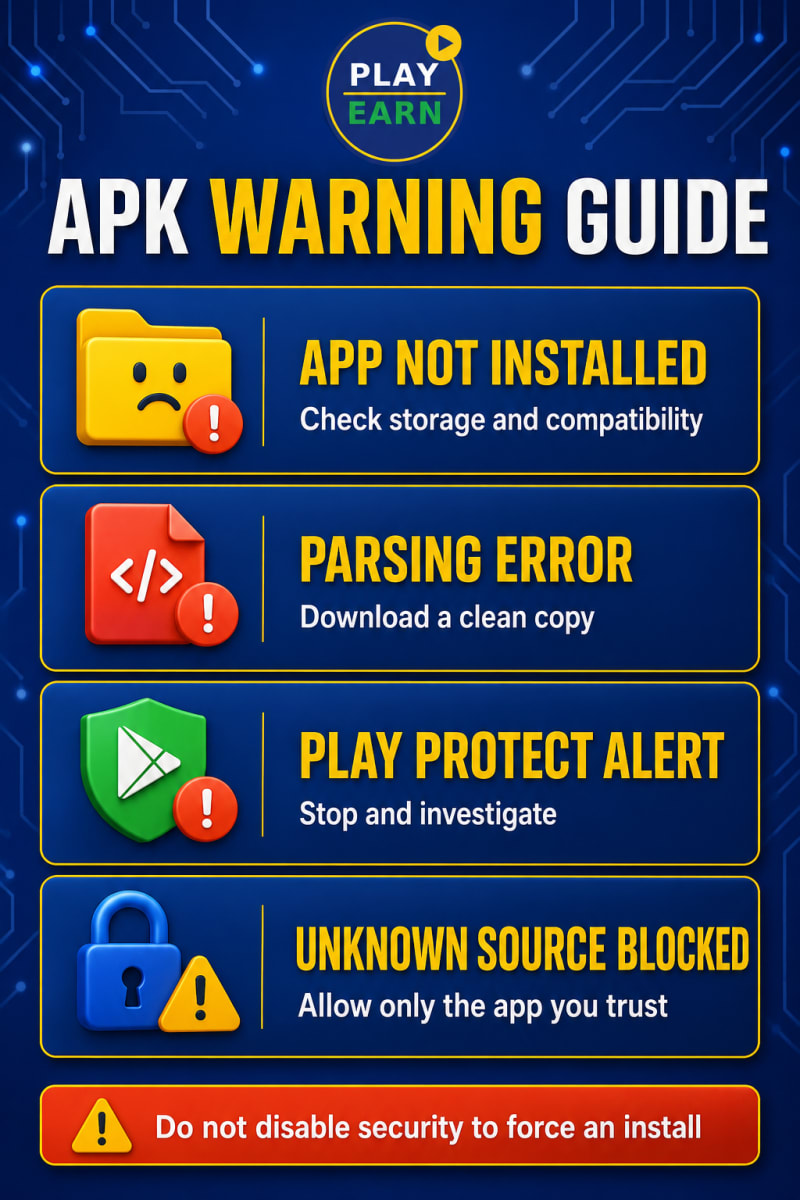
You can install a standard APK directly through a browser, from a file manager, or after transferring it from a computer. The first method is usually the quickest.
Method 1: Install an APK Through Chrome
- Open Chrome on your Android phone.
- Visit the verified developer or download page.
- Choose the correct APK version for your device.
- Tap the download button.
- Read the browser warning before confirming the download.
- Wait for the file to finish downloading.
- Open the completed download notification. You can also open Chrome’s menu and select Downloads.
- Tap the downloaded APK.
- If Android blocks the installation, select Settings.
- Turn on Allow from this source for Chrome.
- Return to the previous screen.
- Review the displayed app name and tap Install.
- Wait for Android to confirm that installation is complete.
- Select Open to launch the app or Done to leave the installer.
Android browsers commonly warn users that APK files may be harmful because this file type can install software. Treat the message as a prompt to double-check the download. It is not something to dismiss automatically.
Large APK downloads can fail on slow or unstable connections. If a 500 MB game stops halfway, the incomplete file may still appear in Downloads but will not install properly. Delete it, check your available storage, and download a fresh copy over a stable connection.
Method 2: Install Through a File Manager
Use this method when the APK is already saved on your phone:
- Open Files, My Files, File Manager, or Files by Google.
- Open the Downloads folder.
- Find the file ending in
.apk. - Check that its name and size match the file you downloaded.
- Tap the file once.
- Allow installations from that file manager if Android asks.
- Return to the installer.
- Tap Install.
- Wait for the completion message.
If you cannot find the download, search for its name or sort the folder by newest files. It may also have been removed by browser cleanup or Android security checks.
Do not rename a ZIP, XAPK, APKM, APKS, or AAB file to .apk. Changing the final letters in the filename does not convert the package.
Method 3: Transfer an APK From a Computer
Transferring the file from a computer is useful when mobile internet is slow, the download is particularly large, or the APK is already saved on your PC.
- Download and verify the APK on the computer.
- Connect the phone with a data-capable USB cable.
- Unlock the phone.
- Tap the USB notification.
- Choose File Transfer under the USB options.
- Open the phone’s storage on the computer.
- Copy the APK into the phone’s Downloads folder.
- Eject the phone safely.
- Open the phone’s file manager.
- Locate and tap the APK.
- Permit the file manager if required, then complete the installation.
Ordinary USB file transfer does not normally require USB debugging. If the File Transfer option does not appear, try another cable or USB port. Many inexpensive cables charge a phone but cannot transfer data.
Advanced users can also install a personally built or trusted APK through Android Debug Bridge. That method requires current Android Platform Tools and computer authorization, so it is unnecessary for most everyday installations.
What Android Warnings Mean and How to Fix Installation Errors
An error does not always mean the APK is malicious. It may be incompatible, incomplete, or in conflict with an existing version. Still, repeatedly bypassing warnings without understanding them is a poor fix.
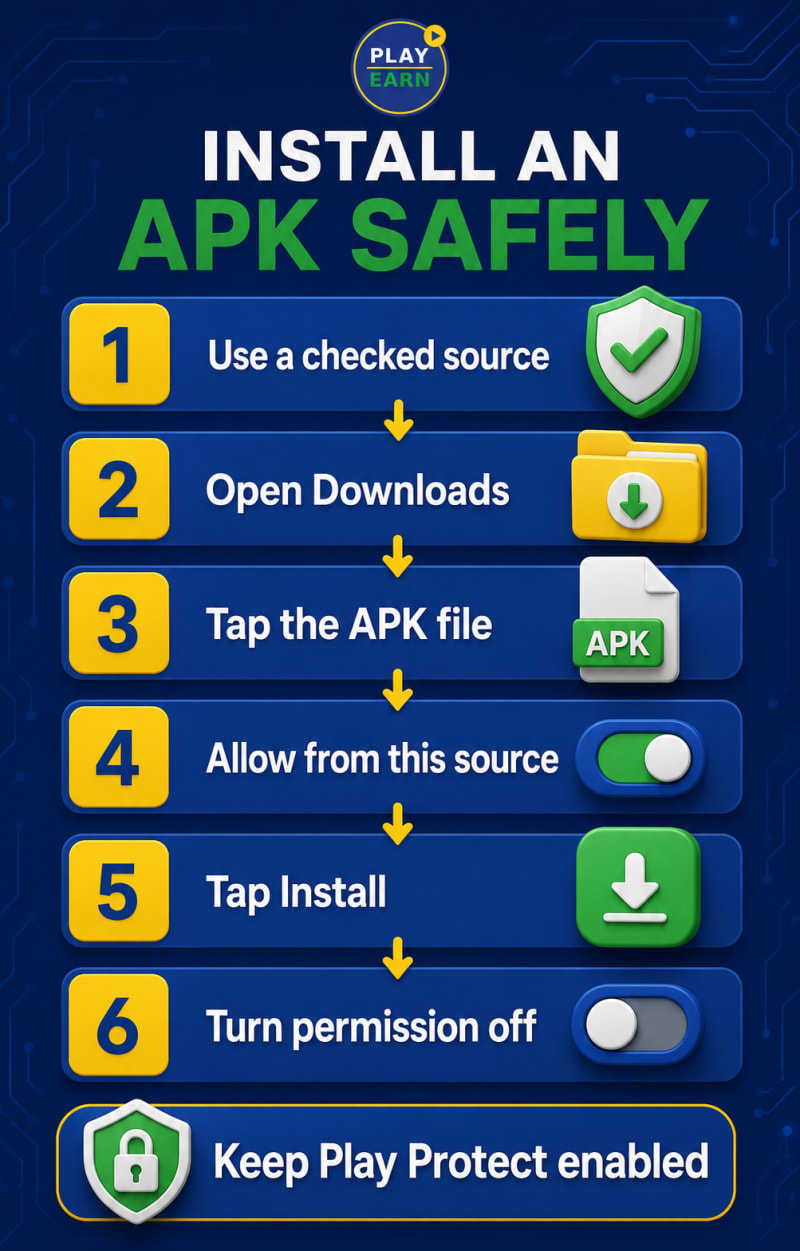
| Warning or problem | Likely meaning | What to try | When to stop |
|---|---|---|---|
| Not allowed from this source | The browser or file manager lacks permission | Enable it only for the app opening the verified file | An unexpected app asks for permission |
| App not installed | Storage, compatibility, version, package, or signature conflict | Check storage, Android version, and existing installation | A fresh file from the confirmed source repeatedly fails |
| Parsing error | The package is damaged, incomplete, incorrectly formatted, or incompatible | Delete it and download a clean copy | Several confirmed copies fail |
| Play Protect requests a scan | The APK came from outside normal Play distribution | Let Play Protect scan it | The source insists that protection be disabled |
| Harmful app blocked | Suspicious behavior or reputation may have been detected | Stop and investigate the developer and source | Do not bypass it for a bonus, deposit, or withdrawal |
| Install button is unavailable | An overlay, restricted profile, or managed device may be blocking it | Close overlay apps and check device restrictions | A work or school policy prohibits installation |
If you see App not installed, work through these checks in order:
- Restart the phone.
- Free some internal storage.
- Confirm the minimum Android requirement.
- Delete incomplete copies of the APK.
- Check whether another version is already installed.
- Compare the installed and downloaded versions.
- Confirm that the file is a standard APK rather than one part of a split package.
- Download a clean copy from the confirmed source.
Storage problems are easy to overlook. The downloaded APK is not necessarily the same size as the installed app. Android needs space to extract the package, and some games download additional resources the first time they open.
An update can also fail when the new APK does not share the installed app’s package identity and signing certificate. Android uses app signatures to prevent an unrelated package from silently replacing another application.
Claims of unlimited balances or guaranteed winnings are especially risky in casino and earning apps. Read our OK37 hype versus real withdrawals review for an example of how promotional claims can differ from actual app behaviour.
Do not uninstall immediately: Removing the current app can erase local settings, downloaded resources, or game progress. Check whether your progress is linked to an account or cloud service before uninstalling.
APK, Split APK, XAPK, APKM and AAB: What Is the Difference?
Not every Android package opens with the standard installer.
| Format | Basic meaning | Direct installation |
|---|---|---|
| APK | Standard Android installation package | Usually |
| Split APK/APKS | Base app plus device-specific components | All required parts are normally needed |
| XAPK | Third-party archive that may include an APK and extra data | Usually needs a compatible method |
| APKM | Third-party package archive | Not through the standard installer |
| AAB | Publishing format used to generate device-specific packages | Not normally installed directly |
A split package may contain separate components for language, screen density, or processor type. If you install only its base component, Android may reject it or the app may fail after installation.
Use an installation method recommended by a source you trust. An unknown “universal installer” promoted through a pop-up introduces another app—and another set of permissions—to the process.
What to Do After Installing an APK
A successful installation only tells you that Android accepted the package. Before entering account, identity, or payment information, complete these checks:
- Turn off Allow from this source.
- Open Google Play and run a Play Protect scan.
- Review the installed app’s permissions.
- Deny access that does not match its function.
- Check its early battery and mobile-data usage.
- Watch for unexpected pop-ups, redirects, or background notifications.
- Be cautious if it requests accessibility, device-administrator, screen-sharing, or remote-control access.
- Confirm how future updates will be delivered.
- Delete the APK installer if you no longer need it.
Deleting the downloaded APK normally does not remove the installed application. It simply clears the installer from storage, which is useful on phones already running low on space.
Play Protect and other security checks reduce risk, but no scanner can guarantee that every file is harmless. Pay attention to how the app behaves after installation, particularly if an older phone suddenly becomes unusually slow, hot, or data-hungry.
Casino apps may also enable notifications, promotional messages or automatic settings during setup. Review our five settings to change after installing HOT77 for an app-specific example.
Extra Safety for APKs Shared in Pakistan
Pakistani users often come across APK links in WhatsApp groups, Telegram channels, Facebook pages, referral messages, and private-agent conversations. A professional logo, payment screenshot, or crowded group does not confirm who operates the app.
Earning, prediction, casino, loan, investment, and wallet APKs require extra caution because they may ask for money or sensitive identity details.
Never share the following with an unconfirmed app or support agent:
- JazzCash or Easypaisa PIN
- Banking password
- Debit-card PIN
- One-time password
- Email recovery code
- Screen-sharing code
- Remote-access permission
- Account recovery phrase
- CNIC images without independently confirming the service and its need for them
Claims of guaranteed daily income, a fixed winning formula, risk-free deposits, or a payment required to release a withdrawal are serious warning signs. Real-money games involve financial risk and should never be presented as a dependable source of income.
Payment support can vary even when two apps display the same wallet logos. Our JazzCash versus EasyPaisa test for OK222 compares both deposit and withdrawal routes. Availability, payment options, identity requirements, and local rules can change, so confirm the current information rather than relying on an old screenshot or forwarded message.
Frequently Asked Questions
Is it safe to install APK files on Android?
It can be, but safety depends on the developer, download source, file integrity, compatibility, and requested permissions. Check those details before installation, keep Play Protect enabled, and stop if Android identifies the file as harmful.
Why does my phone say “App not installed”?
Your phone may lack storage, the file may be damaged, or the app may not support your Android version. An existing installation, signature conflict, downgrade, or missing split-package component can cause the same message.
Should I disable Google Play Protect to install an APK?
No. Keep Play Protect enabled and investigate the source when it blocks or warns about an APK. A website that demands you disable every security feature is giving you a good reason to stop.
Can I delete the APK after installing the app?
Yes. The APK is the installer file, so deleting it normally does not uninstall the application. Removing old installers also saves storage and prevents confusion when you later download an updated version.
Can an APK update an app installed through Google Play?
Sometimes. The downloaded package generally needs to match the installed app’s package identity and signing certificate, and the version must be compatible. Back up important local data before uninstalling an existing version to resolve a conflict.
Final Safety Check Before Opening the App
A sensible installation has three parts: verify the developer and file, grant permission only to the correct source app, and secure the phone after the installation finishes.
Knowing how to install APK files on Android safely is not about ignoring every warning until the app opens. It is about understanding what Android is telling you and stopping when the source, permissions, or app behaviour does not add up.
Before installing an unfamiliar game, review its version, payment information and known risks through the PlayEarn game library. You can also compare major app families in our RS Games Pakistan guide, 777 Games comparison and 999 Games family guide.